
AI Charts
Make charts with AI in seconds
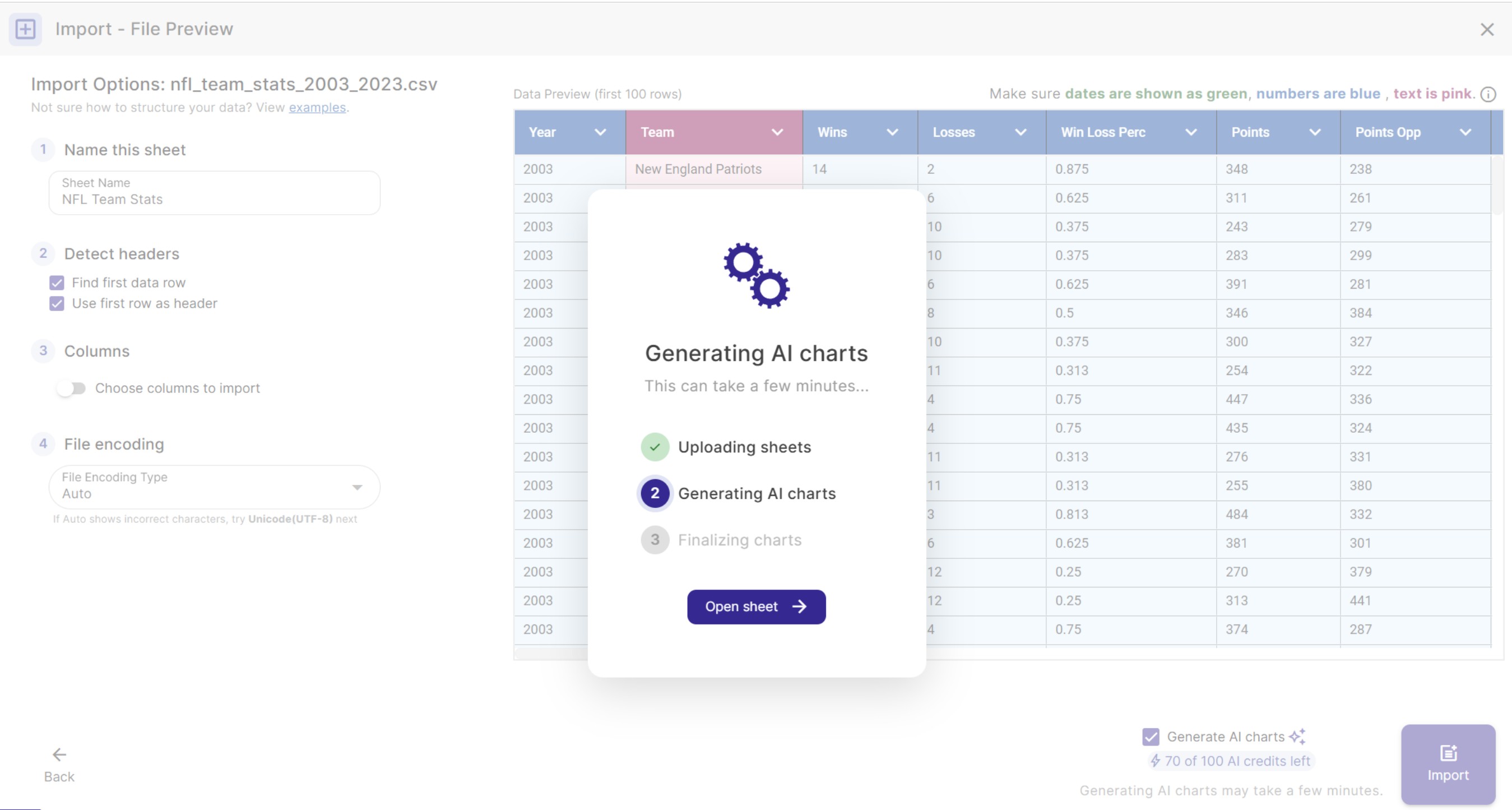
Upload a spreadsheet and AI generates 3 ready-to-use charts from your data, with no chart-picking or setup.
How it works
Upload and AI builds your charts
AI reads your columns and data types, then suggests the 3 best charts in seconds
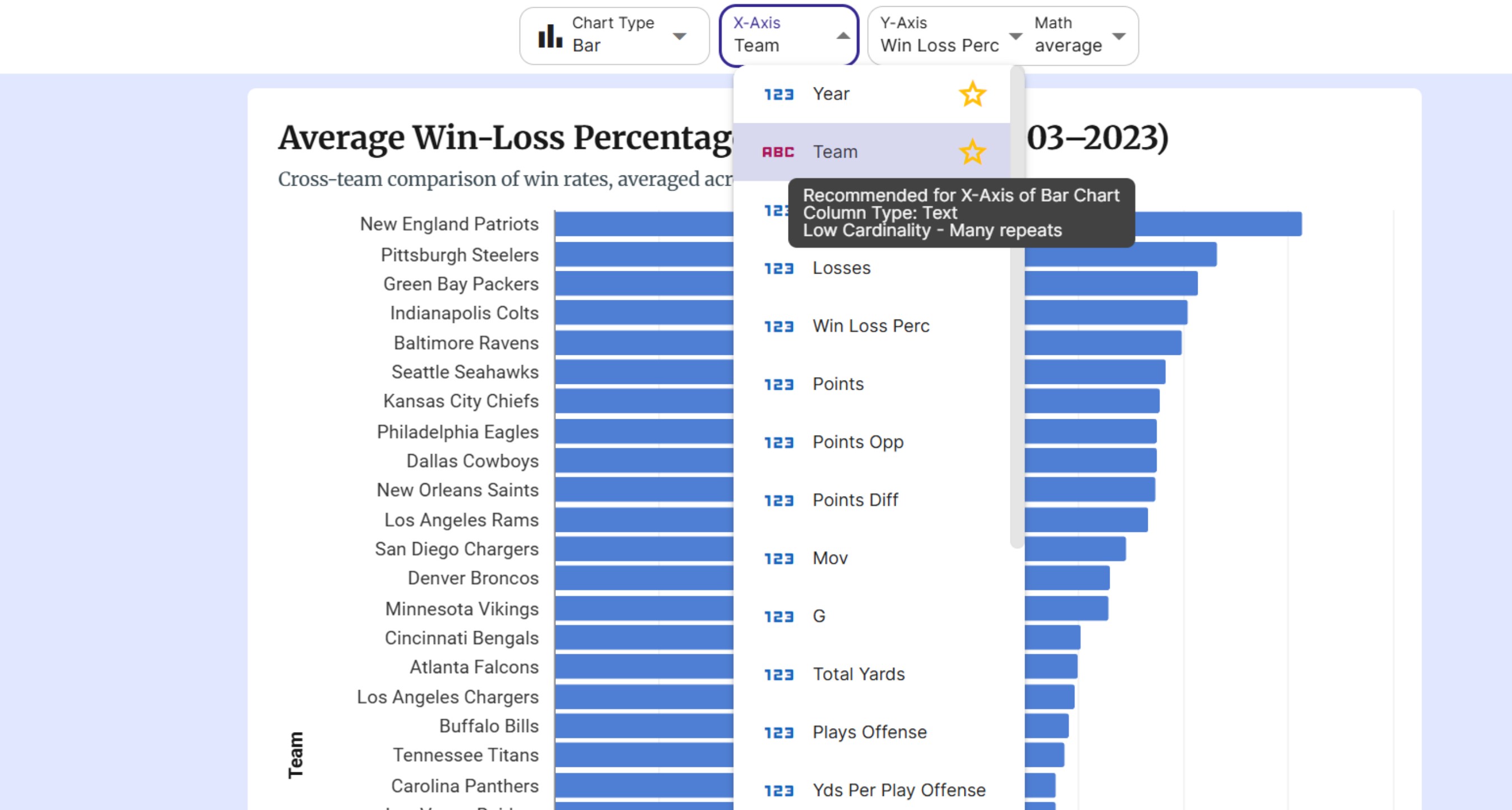
Full control
AI suggests. You stay in control.
Every AI chart is a starting point you can refine however you like
AI apps
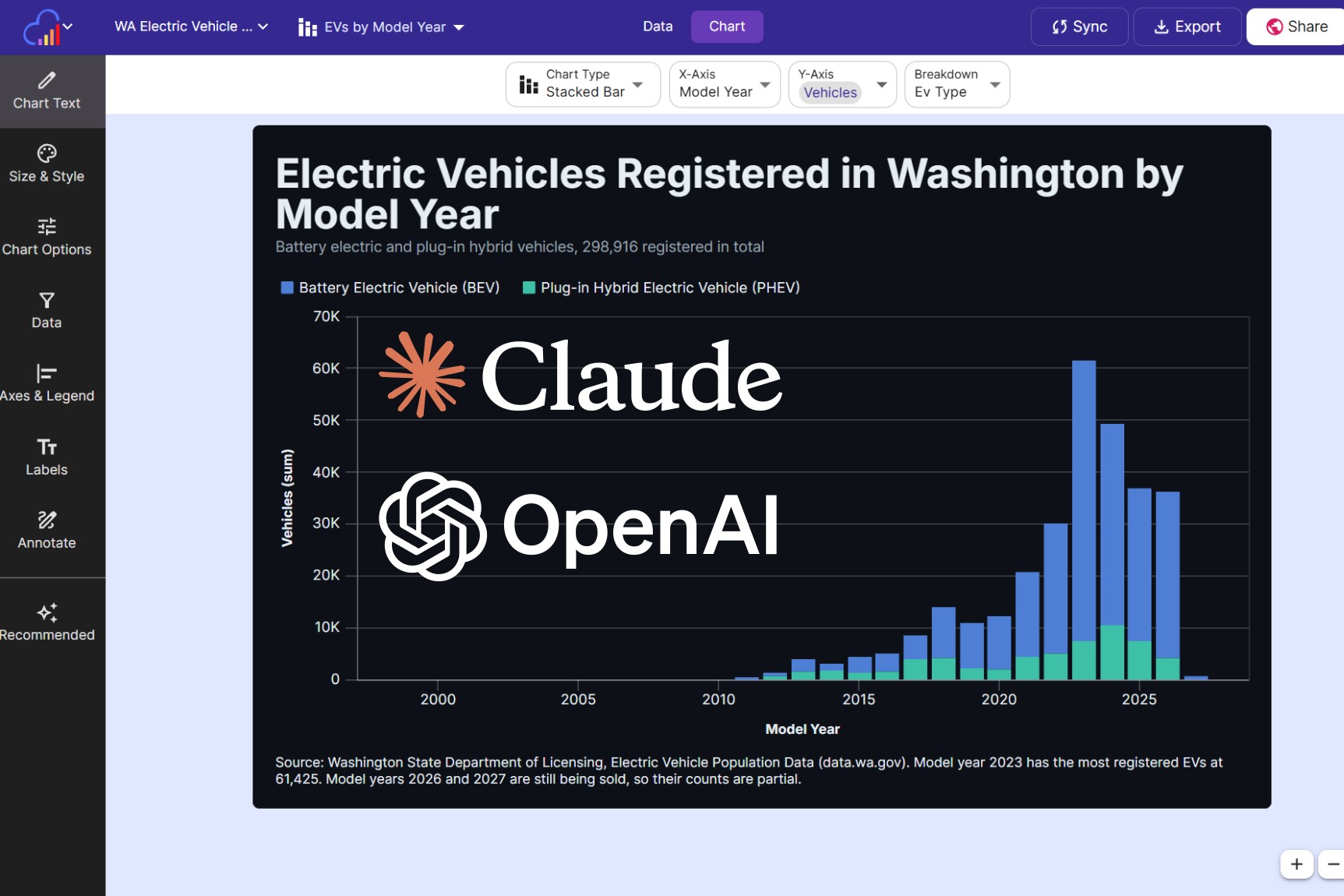
Make charts in Claude and ChatGPT
Connect your AI assistant to the InstaCharts MCP server and build charts by asking for them in a chat
Everything you need in an AI chart maker
Fast, flexible and private. AI does the heavy lifting, you make the call.
AI-Generated Charts
Upload your data and AI instantly builds 3 charts tailored to it, with no template hunting.
Private by choice
AI is optional. Opt out anytime and your data is never sent for AI processing, so it stays secure.
Smart recommendations
AI ranks the best chart types and columns for your data, and explains each suggestion.
15 chart types
Bar, line, scatter, area, pie, radar, heatmap, gauge and more, plus a sortable data table.
No code required
No formulas, no modeling and no coding. Upload, customize visually, and share.
Share & embed
Export to PNG, SVG or PDF, share a public link, or embed an interactive chart anywhere.
FAQs
AI Chart Maker FAQs
An AI chart maker reads your spreadsheet and builds charts from it for you. The InstaCharts AI chart maker analyzes your column names, data types and a sample of your rows, then suggests 3 charts, each with a chart type, title, subtitle and caption written for your data.
Check "Generate AI charts" in the import dialog when you upload a spreadsheet, and InstaCharts builds 3 charts as soon as the upload finishes and opens the first one. For a sheet you already uploaded, click Recommended in the left sidebar and choose Generate 3 Recommendations, then add any suggestion to your sheet with one click.
The AI examines your column names and data types to decide which chart types fit your data, such as a line chart for values over time or a bar chart for comparing categories. It also writes a data summary and insights that call out outliers and data quality issues it noticed, so you can see the reasoning behind each recommendation.
Yes. Type into the Additional instructions box before you generate to give the AI extra context, for example "Focus on trends over time", "Compare revenue across product categories" or "Only show me stacked bar charts". Clear instructions make the recommendations more relevant to what you want to show. Ask the AI to track progress toward a goal and it builds a gauge chart, setting the scale and target when your data or your request makes them clear.
Yes. The free plan includes 5 AI credits a month, and one AI credit generates a set of 3 chart recommendations. Starter plans include 50 AI credits per seat and Pro plans include 100 AI credits per seat each month, shared by everyone in the workspace. You need to be logged in to use AI features.
Yes. AI is optional in InstaCharts. Leave "Generate AI charts" unchecked when you import, and use Recommended Charts, which are rule-based suggestions that run without AI and show the exact X axis, Y axis and breakdown columns for each chart. Your data is only sent for AI processing when you choose to generate AI recommendations.
Yes. Every AI chart is a regular InstaCharts chart. Change the chart type, X and Y axes, colors, labels and titles, apply one of 10 chart themes, add filters and annotations, or limit the chart to the top items. You can also make several charts from the same file to explore your data from different angles.
The AI chart generator works with CSV, Excel, TSV, PSV, JSON, JSON Lines and log files, plus Google Sheets and Google Drive files. InstaCharts detects numbers, currencies and dates automatically, so the AI starts from correctly typed columns.
Yes. Every InstaCharts dashboard has an AI prompt bar. Describe what you want, for example "design a dashboard for me" or "add a table of orders", and AI adds the matching widgets and filters. It can also edit widgets already on the dashboard. Each dashboard request uses 1 AI credit.
Yes. Add the InstaCharts MCP server, https://api.instacharts.io/mcp, to Claude, ChatGPT, Claude Code or another AI app that supports remote MCP servers, and sign in with your InstaCharts account. Your AI assistant can then create sheets from pasted data, file links or uploaded files, build and edit any of the 15 chart types, render the chart to check it, and return a share link and embed code. Connecting AI apps is available on paid plans.
Charts made through the InstaCharts MCP server use tasks instead of AI credits, because the AI runs in your own AI app. Each change, such as creating a sheet, creating or editing a chart, sharing a chart or rendering a chart image, counts as one task against the workspace's monthly task limit. Listing and reading your sheets and charts is free.
Yes. Export AI charts as PNG, SVG, JPG, WebP, PDF and PowerPoint files, share them with a public link, or copy the embed code into WordPress, Webflow, Squarespace or any HTML page to show an interactive chart on your website.
Craft professional charts in seconds
InstaCharts makes data visualization easy, so you can build clear reports without design experience.