
integrations
Connect and automate your workflows
Connect Google Sheets, Google Drive, files at a web link, AI apps like Claude and ChatGPT, and 8,000+ apps through Zapier, or update a sheet with a file from your device; your charts stay current and get delivered wherever your team works.
Google Drive
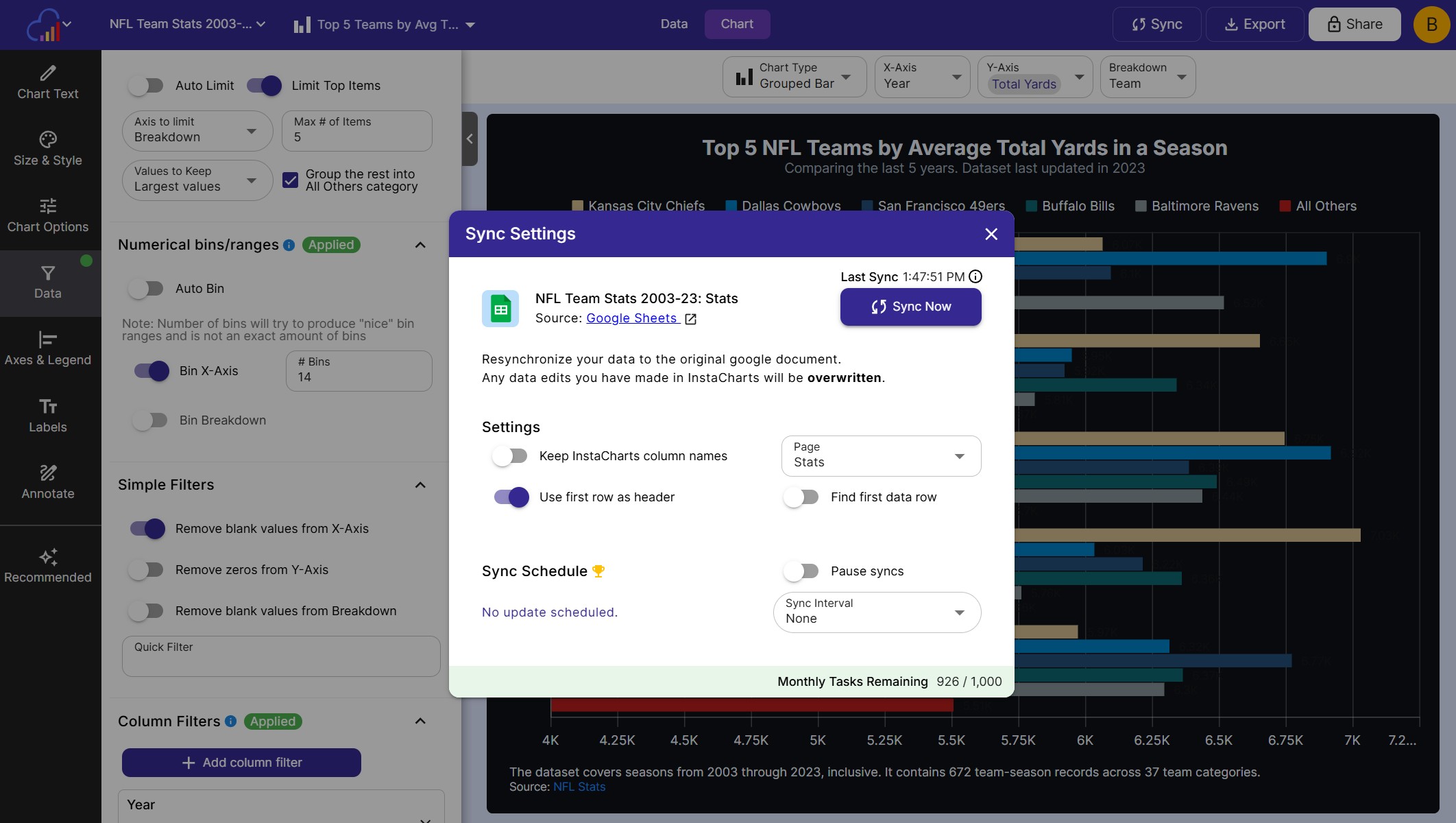
Connect InstaCharts with Google Sheets
Turn Google Sheets and Google Drive files into charts that stay in sync with the original document.
Google Sheets
Pick a Google Sheet and InstaCharts imports the data and builds charts from it.
Google Drive
Pull data from spreadsheet files stored in Google Drive and keep them in sync.
Sync Schedules
Sync when the document changes, hourly, daily, weekly or monthly, or any time with Sync Now.
Features
Features That Make Data Flow
Set up a new workflow in minutes and let your charts update and deliver themselves.
Charts That Update Themselves
Add new rows from Google Sheets, Airtable, a form submission or a new sale, and InstaCharts updates the chart for you.
Deliver Chart Images Anywhere
Generate a ready to share image of any chart and send it to Slack, Microsoft Teams, Discord, Gmail, Notion or Google Drive.
Reports That Run Themselves
Schedule a chart to go out every day, week or month, so your team gets the latest numbers in their inbox or channel.
Live Survey Charts
Connect Typeform, Google Forms or Jotform and chart each response the moment it arrives. A great fit for feedback, polls and research.
Chart Templates
Turn any chart into a template, then pass new data in a URL to create interactive charts and embeds with the same styling.
Image Templates
Create static chart images on the fly from a template URL, ready to drop into emails, reports and web pages.
AI Apps
Make charts from Claude, ChatGPT and other AI apps
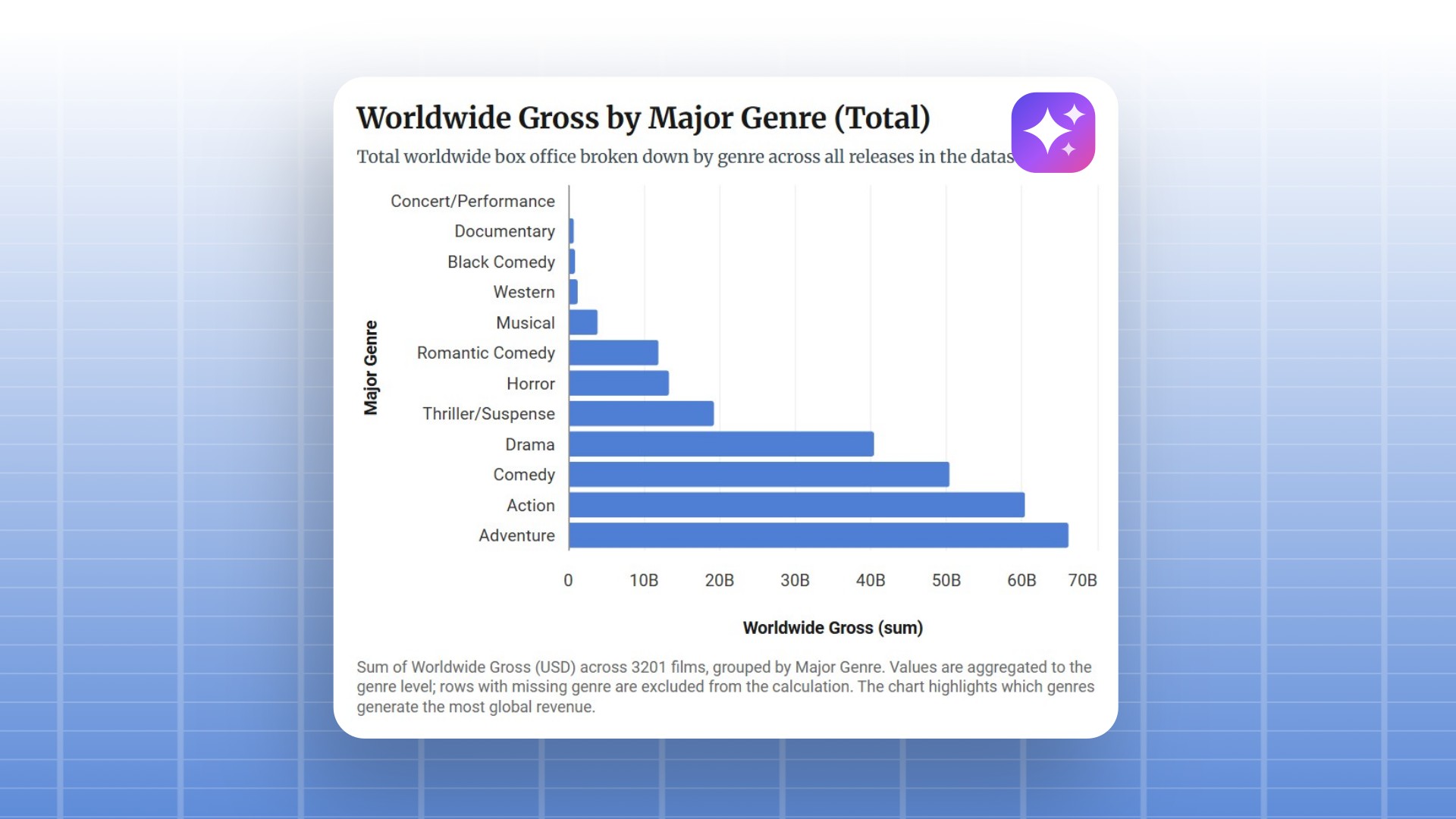
Connect your AI assistant to the InstaCharts MCP server, then ask it to turn your data into a chart, check how it looks and share it, all from the chat.
Data to Chart in a Chat
Paste a table, share a link to a CSV or Excel file, or upload a large file, and your assistant creates the sheet and the chart.
Edit and Share
Ask for a different chart type, sorting, colors or titles, then get a public link and embed code for your website.
Works With Your Workspace
Charts use your saved theme, fonts and colors, and land in your workspace for further editing. Available on paid plans.
InstaCharts + AI
Why chart with InstaCharts and AI together
An AI assistant can draw a quick chart by itself. Connecting it to InstaCharts adds saved styling, live data, full dataset math and permanent links, so every chart can be repeated and updated.
Consistent Branding
Chart Defaults, Brand Colors and your logo are saved in the workspace, so every chart your assistant makes follows the same style each time.
Repeatable Data Updates
Add rows, update the sheet from a new file, or sync from Google Sheets or a link on a schedule, and the chart keeps its type, colors and labels.
Numbers From Every Row
InstaCharts calculates sums, averages and counts across the full sheet, and you can open the sheet to check the data behind any chart.
Links That Stay Current
Charts are saved in your workspace with a share link and embed code that show the latest version as the chart and its data change.
Fine-Tune in the Editor
Open a chart your assistant made to adjust labels, annotations or colors with a click, then export it as PNG, SVG, PDF or PowerPoint.
Built for Teams
Teammates can refine the same chart in a shared workspace, and you choose whether an AI app can edit your data or only view it.
Files Sync
Update a sheet with a file from your device
Data that lives offline keeps your charts current too. Pick a newer file and InstaCharts previews the result before anything runs.
Overwrite
Replace the whole sheet or a few columns, and keep the column names you already use.
Add Rows
Append the rows from the new file, a good fit for monthly exports and growing logs.
Add Columns
Place the columns from the new file next to your existing ones, lined up row by row.
Web Links
Import and sync a file from a link
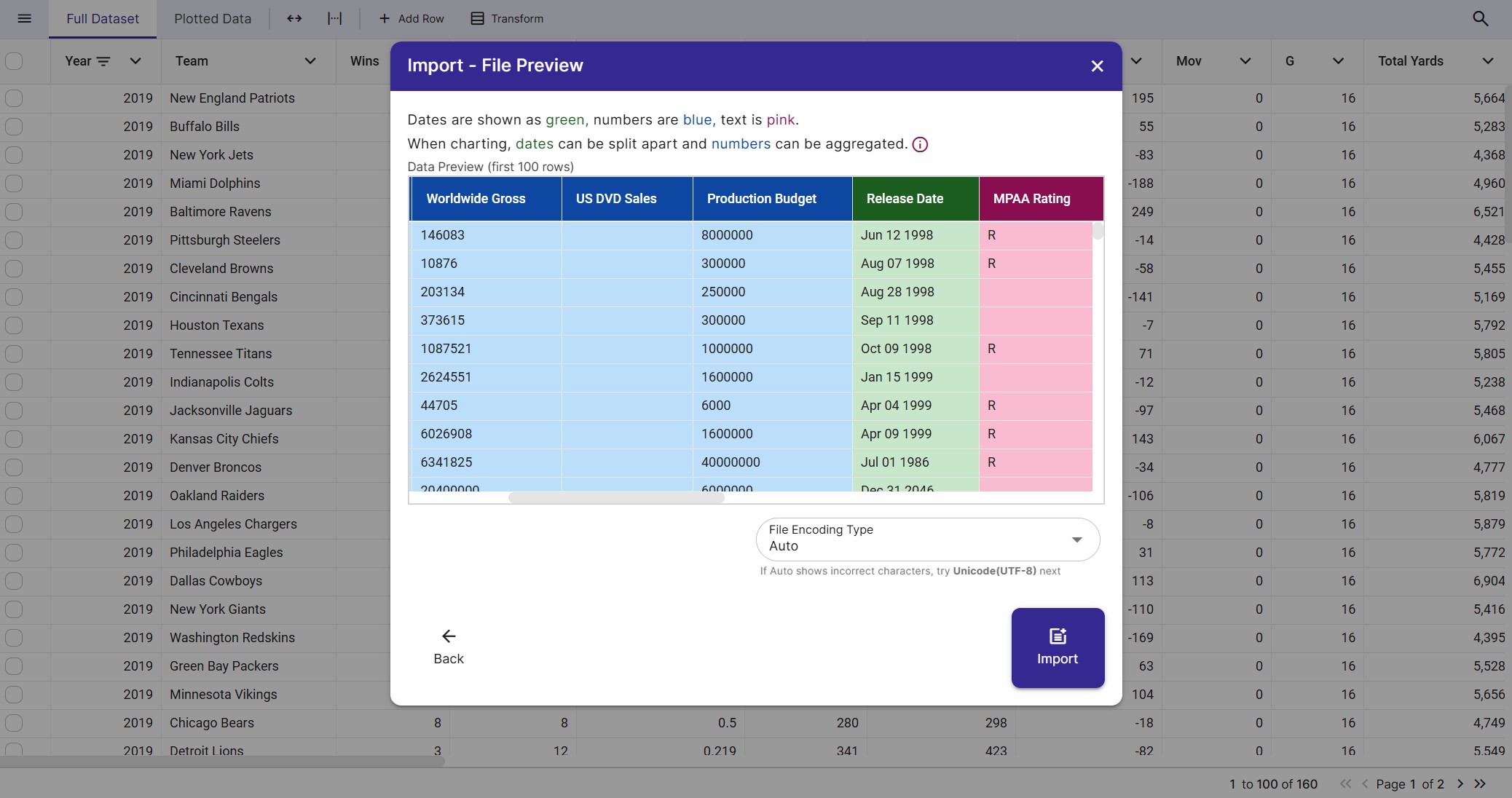
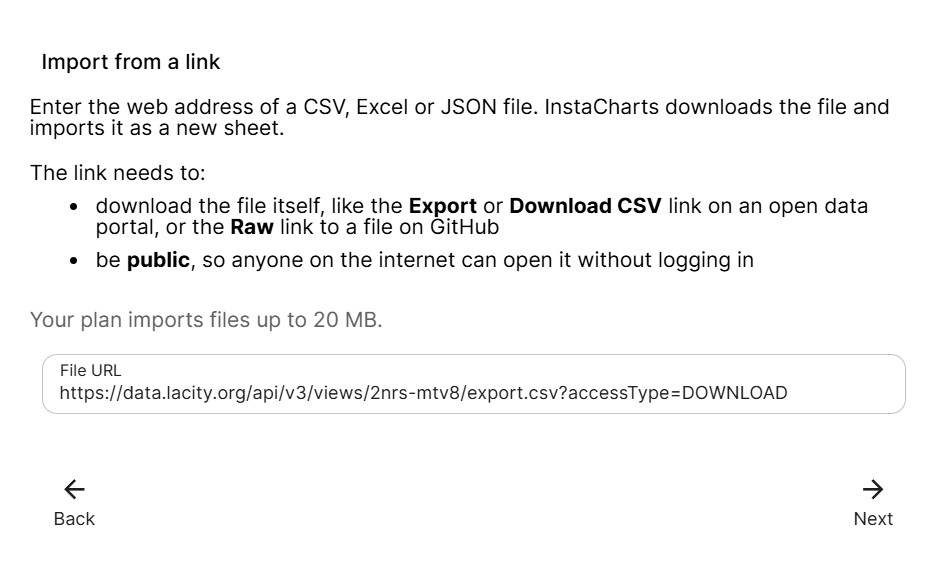
Paste the web address of a CSV, Excel or JSON file and InstaCharts turns it into a sheet with a chart, then downloads the file again on a schedule to keep the data current.
Paste a Link
Import a public file from an open data portal, a GitHub Raw link or a reporting tool export.
Preview Before Import
Check the first rows, name the sheet, and pick the columns and pages to import.
Sync Schedules
Sync any time with Sync Now, or hourly, daily, weekly or monthly on a paid plan.
Zapier
Automate your charts with Zapier
Two InstaCharts actions plug into 8,000+ apps, with every workflow built visually in Zapier.
Add Data Row
Send new data from any app into an InstaCharts sheet, and every chart on it updates.
Get Chart Image
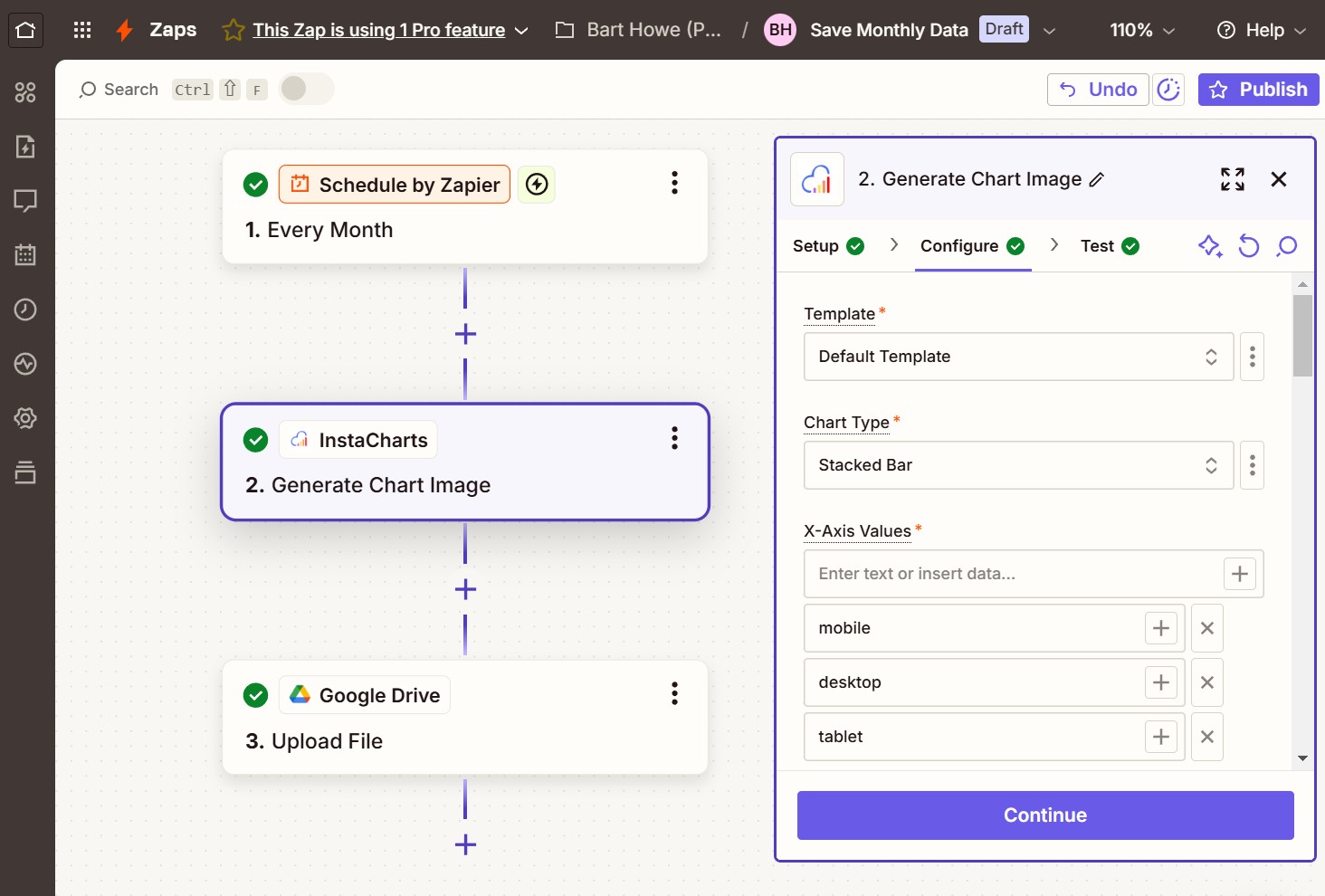
Render any chart as a shareable image to post, email or save in your next Zap step.
8,000+ Apps
Connect Slack, Teams, Gmail, Notion, Airtable, Stripe, HubSpot, Salesforce and more.
Zap templates
Ready-made Zaps to get you started
Pick a template below and connect your apps in a few clicks. No code required.
FAQs
Integrations & automation FAQs
InstaCharts integrates directly with Google Sheets and Google Drive for live data syncing, and through Zapier it connects to more than 8,000 apps, including Slack, Microsoft Teams, Gmail, Notion, Airtable, Typeform, Google Forms, Stripe, HubSpot and Salesforce. InstaCharts also imports and syncs CSV, Excel and JSON files from any public web link, and AI apps such as Claude and ChatGPT connect through the InstaCharts MCP server. Data flows into your charts from these sources, and chart images flow out to wherever your team works.
Connect your Google account in InstaCharts, pick a Google Sheet or a spreadsheet file from Google Drive, and InstaCharts imports the data and builds charts from it. The sheet stays connected to the original document, so you can sync new data into your charts at any time with Sync Now or a sync schedule.
Paid plans can set a sync schedule that updates automatically when the original document changes, or checks it hourly, daily, weekly or monthly. Google can take up to 5 minutes to send changes through. Free accounts can run 5 manual syncs a day with Sync Now, and manual syncs are unlimited on paid plans.
Yes. In InstaCharts, choose New Sheet, then Import from a link, and paste the web address of a public CSV, Excel or JSON file, such as the export link on an open data portal or the Raw link to a file on GitHub. InstaCharts downloads the file, shows a preview of the first rows, and creates a sheet and a chart from the data. The link needs to start with https:// and open for anyone on the internet without a login.
A sheet imported from a link remembers its web address. Click Sync Now in Sync Settings to download the latest version of the file, or set an hourly, daily, weekly or monthly sync schedule on a paid plan. Each sync replaces the sheet's data with the file at the link, and every chart, data table, dashboard and embed built on the sheet shows the new numbers. Each sync counts as one task.
InstaCharts imports CSV, TSV, PSV, text, log, JSON, JSON Lines, Excel (.xlsx, .xls, .xlsm, .xlsb), OpenDocument and Apple Numbers files from a public web link. The largest file you can import from a link matches the upload file size limit on your plan, and a workbook with several pages can import each page as its own sheet.
Yes. Connect Claude, ChatGPT, Claude Code or another AI app to the InstaCharts MCP server at https://api.instacharts.io/mcp and sign in with your InstaCharts account. Then ask your AI assistant to chart your data, and it creates an InstaCharts sheet and chart, renders the chart to check how it looks, and returns a share link and embed code. The MCP server is available on paid plans and works in workspaces on a paid plan.
The InstaCharts MCP server is a remote Model Context Protocol server that lets AI apps work with your InstaCharts account. It gives an AI assistant 14 tools to list workspaces, create sheets from pasted data, links or uploaded files, add, change and delete rows, create and edit any of the 15 InstaCharts chart types, render chart images, and share charts with a public link and embed code. There is nothing to install, and your AI app signs in with your InstaCharts account.
An AI app connected to InstaCharts works with the same access you have, in the workspaces you belong to on a paid plan. The sign in page lists what the app can do, and you can uncheck edit access to give it view access only. Each change the app makes counts as one task against the workspace's monthly task limit, and you can remove an app's access at any time from the Third Party Apps list in your InstaCharts login settings.
InstaCharts gives charts made by Claude, ChatGPT and other AI apps saved styling, a live data source and a permanent home. Workspace Chart Defaults, Brand Colors and logos style every chart the same way, so the look comes from saved settings in place of prompt wording. The data lives in a sheet that can be updated with new rows, a new file or a scheduled sync from Google Sheets or a web link, and the chart keeps its settings through each update. InstaCharts calculates chart values from every row, the share link and embed code stay the same as the chart changes, and anyone on your team can open the chart in the editor to adjust it or export it as PNG, SVG, PDF or PowerPoint.
Yes. A chart made through the InstaCharts MCP server is built on an InstaCharts sheet, so its data can be updated the same way as any other sheet. Ask your assistant to add, change or delete rows, update the sheet from a newer file on your device, or connect the data to Google Sheets or a web link and sync on a schedule. Every chart, embed and dashboard built on the sheet shows the new numbers and keeps its styling.
The InstaCharts Zapier integration connects your charts to over 8,000 apps using two actions. The "Add Data Row" action sends new data into an InstaCharts sheet so its charts update automatically, and the "Get Chart Image" action renders any chart as a shareable image. Together they keep charts current with data from apps like Google Sheets, Airtable, Typeform and Stripe, and deliver chart images to Slack, Microsoft Teams, Gmail, Notion or Google Drive.
Create a free InstaCharts account, then add the InstaCharts app to a Zap and authorize it. Use InstaCharts as an action step: choose "Add Data Row" to send data into a chart, or "Get Chart Image" to generate a chart image. The whole setup happens in Zapier's visual editor with zero code.
Use the InstaCharts "Add Data Row" Zapier action. New data from another app, such as a new Google Sheets row, a form submission or a sale, is added to your InstaCharts sheet automatically, and every chart built on that sheet updates right away. This keeps dashboards and embedded charts current with zero manual editing.
Use the InstaCharts "Get Chart Image" Zapier action to produce a ready to share image of any chart. Zapier can then post it to Slack, Microsoft Teams or Discord, attach it to a Gmail or Outlook email, or save it to Notion, Google Drive or Dropbox. Add a schedule trigger to deliver automatic chart reports to your team every day, week or month.
Connect a form app such as Typeform, Google Forms or Jotform to InstaCharts in Zapier, and each new response is added to your chart automatically. The chart shows results in real time as responses arrive, which suits surveys, polls, customer feedback and research.
Yes. Connect Stripe, HubSpot or Salesforce to the InstaCharts "Add Data Row" action in Zapier, and every new payment or deal is added to your sheet. The charts, embeds and dashboards built on that sheet update as the data arrives, so your whole team sees the latest numbers.
Yes. The "Get Chart Image" action renders the chart you already designed in InstaCharts, so the image keeps the theme, colors and fonts you set. Every automated chart that goes out to Slack, email or Notion matches the rest of your reports.
A chart template turns one of your charts into a reusable design. Turn the template on in the Templates tab of the share dialog, then pass new data in the URL to create an interactive chart page, an embed or a static chart image with the same styling. Templates save time on repeat reports, and the Template Docs explain the URL format.
Update the existing sheet with a newer file from your device. Right click the sheet in your Workspace and choose "Update Data", or open the sheet and choose "Update Sheet Data" from the sheet menu, then pick the new file. InstaCharts matches the columns for you and shows a preview before the update runs, and every chart, data table and dashboard built on that sheet shows the new data.
InstaCharts gives you three update modes. "Overwrite this sheet" replaces the data in the sheet with the data in the new file, either the whole sheet or just a few columns, and a "Keep my column names" option holds on to the names you already use. "Add rows to this sheet" keeps the current rows and appends the rows from the new file after them, which suits monthly exports and growing logs. "Add columns to this sheet" keeps the current columns and adds the columns from the new file next to them, lining the rows up in order.
Your charts keep working and keep their settings. Each chart follows the column it already plots, so a matched column keeps its chart along with its theme, colors and annotations, and shared links and embed codes stay the same. InstaCharts matches columns by name first and by position second, lists every column with the result of the update, and asks you to map a column to the new file before an update that would drop a column a chart uses.
Yes. Every InstaCharts integration is no-code. Google Sheets and Google Drive connect with a few clicks, and Zapier workflows are built visually by picking a trigger app and an InstaCharts action. Anyone on your team can set up automated, on-brand charts in minutes.
Craft professional charts in seconds
InstaCharts makes data visualization easy, so you can build clear reports without design experience.